

How to Schedule Threads Posts in 2026: Native App vs Scheduling Tools
Learn how to schedule Threads posts in 2026, using the Threads app where it is available or a scheduling tool on the official Threads API, with limits, tips and FAQs.
Here is how to schedule Threads posts in 2026. There are two ways: with the Schedule option in the Threads app, if it is available on your account, or with a scheduling tool that connects to Meta's official Threads API. The app option is quick for a single post. A tool is better when you plan a week of content or post to several platforms.
This guide shows both methods step by step, explains why the native option does not appear for everyone, and covers the limits you should know before you plan your week.
Can you schedule posts on Threads?
Yes, but how depends on your account and your workflow.
- In the Threads app: Meta added a basic scheduling option to the Threads composer, but it has not behaved the same way for every account. Some people see a Schedule option in the composer menu; others never get it, or see it disappear after an app update. There is no bulk scheduling and no calendar view.
- With a scheduling tool: since 2024, Meta has let approved tools publish to Threads through the official Threads API. This works for every Threads account that you connect, and you get a calendar, a queue and the option to publish the same post to other platforms.
If you post once in a while, try the app first. If Threads is part of a regular content plan, a tool will save you time every week.
Schedule to 7 platforms in 60 seconds
Draft once, tailor per network, and automate comment-to-DM flows. 2.5 months risk-free.
Method 1: How to schedule Threads posts in the Threads app
If your account has the native option, the steps are short:
- Open the Threads app and tap the new post button.
- Write your post (up to 500 characters) and add images or a video.
- Tap the ••• (more) menu in the composer.
- Choose Schedule, then pick the date and time.
- Confirm. The post is saved and goes live at the time you chose.
If you don't see "Schedule": update the app first. If it is still missing, the feature has not reached your account. There is no setting to switch it on, so use Method 2.
Limits of the native option:
| What you need | Threads app |
|---|---|
| Schedule a single post | Yes, if the option appears on your account |
| Schedule a week of posts in one sitting | Slow: one post at a time |
| Calendar view of everything planned | No |
| Post the same content to Instagram, LinkedIn or X | No |
| Team members or client approval | No |
Method 2: How to schedule Threads posts with a tool (Foxli)
A scheduling tool connects to your Threads profile through the official API, so you never share your password. Here is the workflow in Foxli's Threads scheduler:
- Connect Threads. Go to Channels, add Threads and approve access with your Instagram/Threads login on Meta's own screen.
- Create a post. Open Create, click Clear, and select only your Threads channel (or keep other channels selected to publish everywhere at once).
- Write and check. Write your post. The Checks panel shows your character count against the 500-character limit, and the Live Preview shows how it will look on Threads.
- Choose when it goes out. Open the menu next to Add to Queue and pick Schedule Post to set a custom date and time, or Add to Queue to use your next free time slot.
- Review your week. Every scheduled post appears in the calendar, where you can reschedule, edit or delete it before it goes live.
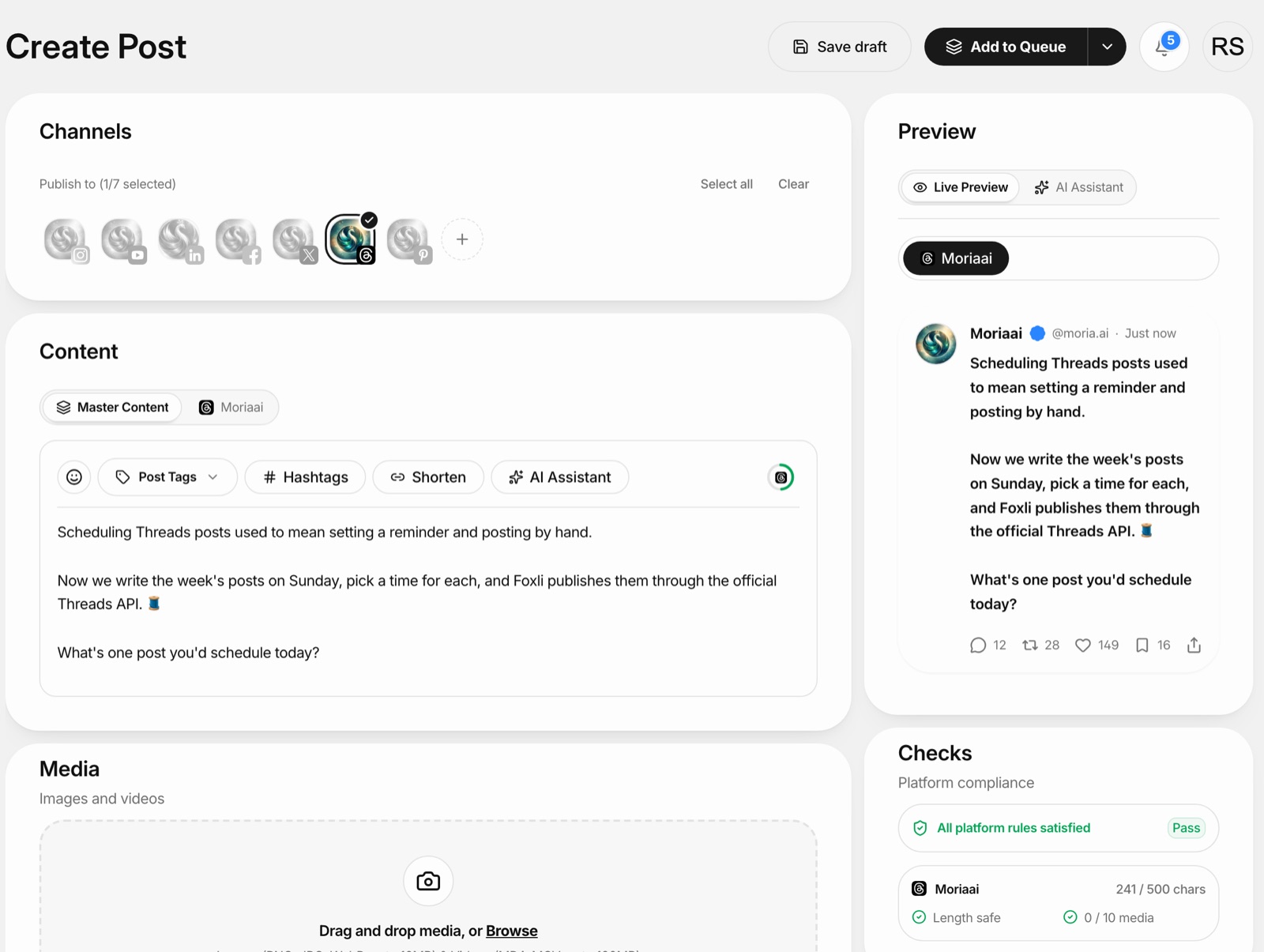 ↑ Foxli composer with only the Threads channel selected, a 241 of 500 character check and a live Threads preview
The publishing menu gives you four options: Publish Now, Add to Queue, Schedule Post, and Share Next (put the post at the top of the queue). For teams there is also Submit for Review, which sends the post to a workspace admin for approval first.
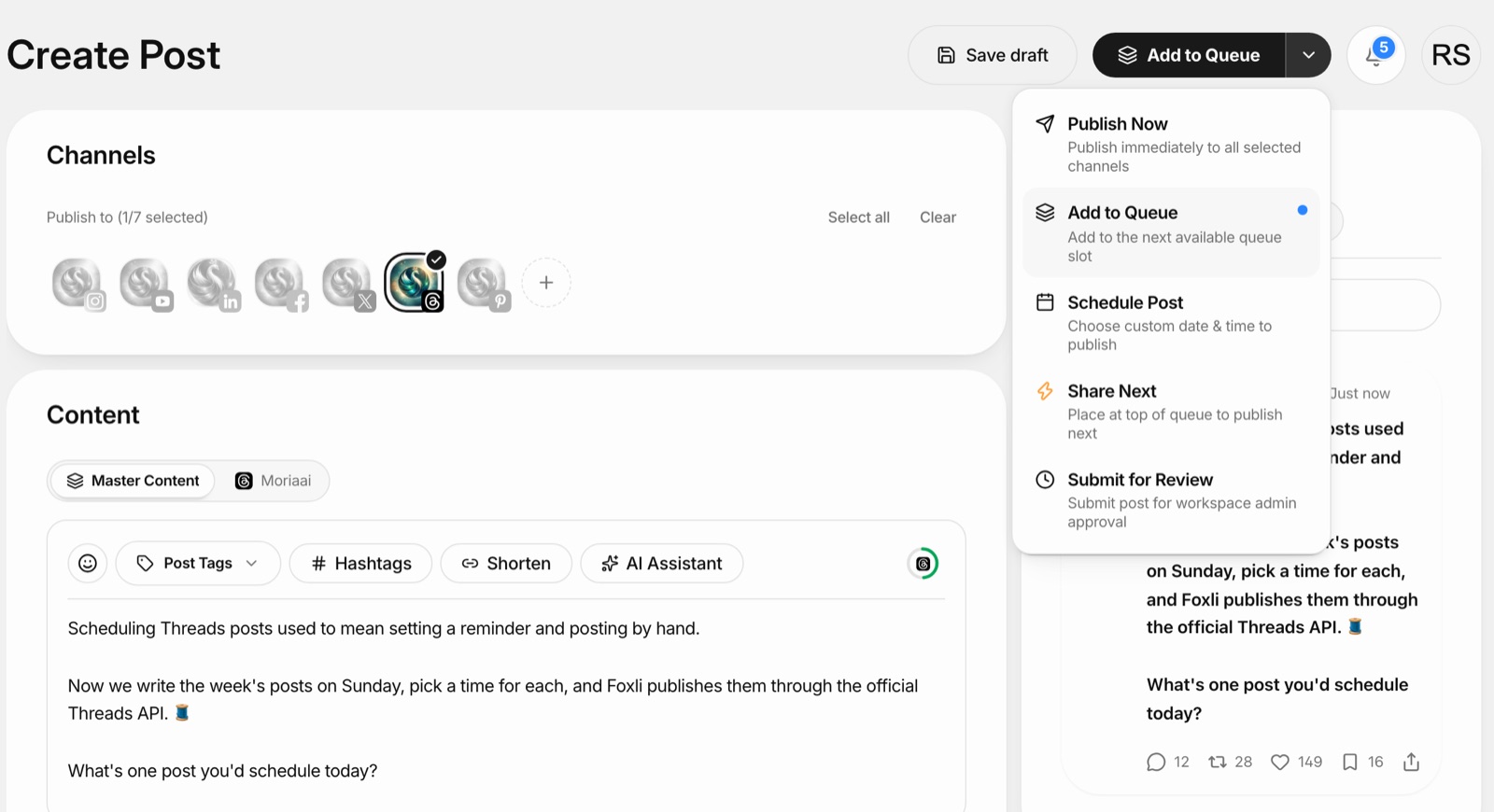 ↑ Foxli publishing menu showing Publish Now, Add to Queue, Schedule Post, Share Next and Submit for Review for a Threads post
From the founder: while building Foxli's Threads integration, I tested publishing on our own Threads account through the official API. The thing that tripped me up most was the 500-character limit when reusing a LinkedIn post, which is why the composer shows a live character check before you schedule. Pushpendra Singh Rathor, founder of Foxli
Tip: Write the week's Threads posts in one sitting on Sunday, then use Add to Queue so each post lands in a pre-set time slot. You only decide what to say; the queue decides when.
What you can schedule to Threads with Foxli
| Post type | Supported in Foxli |
|---|---|
| Text post (up to 500 characters) | Yes |
| Post with one image | Yes |
| Post with one video | Yes |
| Carousel (mix of images and videos) | Yes, up to 10 items per post |
| Same post to Instagram, Facebook, LinkedIn, X, YouTube, Pinterest | Yes, in one go |
Foxli has a Free plan with 3 channels, and paid plans start at ₹99 per channel per month. See pricing for details.
Threads posting limits to know before you schedule
These come from Meta's Threads API documentation and apply to any tool that publishes through the API:
| Limit | Value |
|---|---|
| Characters per post | 500 |
| Posts published via the API | 250 per profile in a rolling 24 hours |
| Carousel items (via the API) | 2 to 20 images or videos; a carousel counts as one post |
| Links | Allowed in the text; Threads shows a link preview |
For a real account, the useful limit is your audience's attention, not the API cap. Most brands do well with 1 to 3 Threads posts a day.
Tips for scheduling Threads posts that people reply to
Write for conversation, not broadcast. Threads rewards replies. End scheduled posts with a simple question, as in the example above: "What's one post you'd schedule today?"
Schedule in your audience's time zone. If your followers are in India, set times in IST. A post scheduled for "9 AM" in a tool set to another time zone can go out in the middle of the night. Check the time zone in your tool's settings once.
Keep a gap between scheduled posts. Back-to-back posts compete with each other. A few hours between posts gives each one time to collect replies.
Leave room for live replies. Scheduling handles publishing. Replies still need a human, so block 15 minutes after a scheduled post goes out to answer the first comments.
Reuse what works on other platforms, but rewrite it. A LinkedIn post or Instagram caption can become a Threads post. Cut it to the core idea, drop the hashtag block, and make it sound like a conversation. In Foxli you can keep the Master Content for every platform and add a Threads-specific version in its own tab.
Native app vs scheduling tool: which should you use?
| You are… | Best option |
|---|---|
| Posting to Threads now and then | Threads app, if Schedule shows up for you |
| A creator posting to Threads several times a week | A scheduler with a queue |
| A brand or agency posting to Threads plus Instagram, LinkedIn or X | A multi-platform tool, so one post goes everywhere |
| A team that needs approvals | A tool with a review step |
If you are comparing tools, our guide to the best social media management tools in 2026 covers the main options and their pricing.
Summary
To schedule Threads posts, use the Schedule option in the Threads app composer if your account has it, or connect Threads to a tool that uses Meta's official Threads API. The app is fine for a single post. For a weekly content plan, a queue, a calendar and posting to several platforms at once, a scheduler like Foxli is faster, and you can start on the free plan.
Frequently asked questions
Can you schedule posts on Threads?
How do I see my scheduled posts on Threads?
Is it safe to use a Threads scheduler?
How many Threads posts can I schedule in a day?
Can I schedule Threads posts from my laptop?
What can I schedule to Threads with Foxli?

Founder of Foxli, a social media management tool for creators, businesses and agencies. I build features like comment-to-DM automation and multi-platform scheduling, and write about what actually works for growing on Instagram, YouTube and LinkedIn.
More from Pushpendra Singh Rathor →Keep reading
See all articles →
Diwali Social Media Post Ideas for 2026: A Day-by-Day Calendar for Indian Brands and Creators
A day-by-day Diwali 2026 social media calendar with post ideas, reel hooks and caption templates for brands, creators and agencies in India.
READ ARTICLE
Best Social Media Management Tools in 2026
Compare the best social media management tools in 2026 for creators, influencers and agencies, with scheduling, automation, analytics and pricing side by side.
READ ARTICLE