
How to Schedule LinkedIn Posts on a Company Page and Profile (Free)
How to schedule LinkedIn posts for free on your personal profile and Company Page, using LinkedIn's built-in scheduler or a free tool, with limits and tips.


To schedule a LinkedIn post, write it in the LinkedIn composer, click the clock icon, pick a date and time, and click Schedule. It works on personal profiles and on Company Pages you manage. If you post often, to several Pages, or to other platforms too, a free scheduler like Foxli is faster.
This guide covers both methods, LinkedIn's limits and a few tips for Indian B2B audiences.
Method 1: Schedule LinkedIn posts natively (free)
On your personal profile
- Click Start a post on your LinkedIn home page.
- Write your post and add images, a video or a document.
- Click the clock icon next to the Post button.
- Choose the date and time, then click Next.
- Click Schedule.
On a Company Page
- Open your Page and make sure you are acting as the Page (you need admin access).
- Click Create → Start a post.
- Write the post, click the clock icon, pick a date and time, and click Schedule.
To see scheduled posts: open the composer, click the clock icon and choose View all scheduled posts.
Limits of LinkedIn's native scheduler
| Limit | Native LinkedIn |
|---|---|
| How far ahead | About 3 months |
| Bulk scheduling | No, one post at a time |
| Calendar view | No |
| Profile + Page in one go | No, schedule each separately |
| Some post types on Pages | Polls, events and reshares can't be scheduled on Pages |
| Other platforms | No |
LinkedIn changes these rules from time to time, so check LinkedIn Help if something looks different on your account.
Method 2: Schedule LinkedIn posts with Foxli (free)
Foxli connects through LinkedIn's official API, and you can connect both your personal profile and any Company Pages you admin.
- Connect LinkedIn. Go to Channels, add LinkedIn and approve access.
- Create a post. Open Create, click Clear, and select your LinkedIn profile, your Page or both.
- Write and check. The Checks panel shows your length against LinkedIn's 3,000-character limit and how many media items you've added (up to 9), and the live preview shows how the post will look.
- Schedule. Use Schedule Post to pick an exact time, or Add to Queue to fill your next free slot.
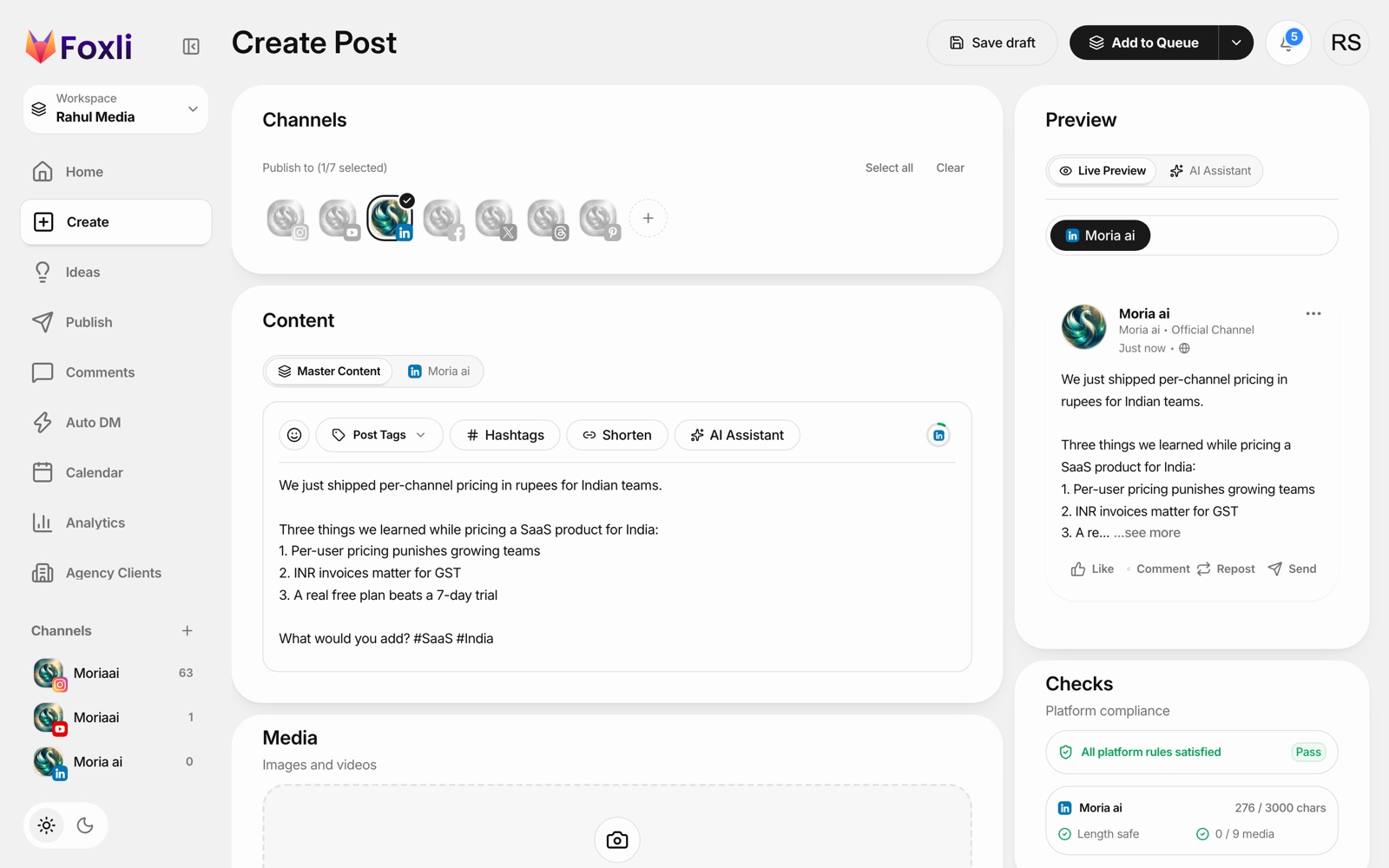
From the founder: the post in this screenshot is a real draft about how we priced Foxli for Indian teams. Look at where the preview cuts the text with "...see more": anything below that line is hidden until someone clicks, so that is the line to check before you schedule. Pushpendra Singh Rathor, founder of Foxli
Free plan: 3 social accounts and 10 posts per channel each month. Paid plans start at ₹99 (about $1.20) per channel a month. See Foxli's LinkedIn scheduler.
Can you schedule LinkedIn videos and carousels?
Yes. Natively, you can schedule posts with images, a video or a document (the PDF "carousel" format). In Foxli, you can schedule text, image and video posts to LinkedIn, and publish the same post to Instagram, Facebook, X, Threads, YouTube and Pinterest at the same time.
Tips for scheduling LinkedIn posts
- Put the hook in the first two lines. LinkedIn hides the rest behind "...see more".
- Post 2–5 times a week. Consistency beats volume on LinkedIn.
- Schedule for your audience's time zone. For Indian B2B audiences, weekday mornings (8–10 AM IST) and lunchtime are good starting points; test against your own analytics.
- Reply in the first hour. Scheduling handles publishing, but early replies help reach.
- Use the Page and your profile together. Post from the Page, then share a personal take from your profile a few hours later.
Which method should you use?
- One person, a few posts a week: LinkedIn's native scheduler is enough.
- A profile and a Page, or several Pages: use a scheduler so both are on one calendar.
- LinkedIn plus other platforms: use a multi-platform scheduler like Foxli.
For another platform guide, see how to schedule Threads posts.