
How to Schedule YouTube Shorts (Phone and Desktop)
How to schedule YouTube Shorts on your phone and in YouTube Studio on desktop, plus how to automate Shorts uploads with a scheduler, IST timing tips and common mistakes.


To schedule a YouTube Short, upload it in the YouTube app or YouTube Studio, set visibility to Schedule, pick a date and time, and confirm. The Short stays private until then and goes public automatically. If you post Shorts often, or want the same video on Instagram Reels and Facebook too, a scheduler can upload and publish them for you.
Method 1: Schedule a Short on your phone
- Open the YouTube app and tap + → Create a Short (or upload a vertical video).
- Edit your Short and tap Next.
- Add a title (with #shorts if you like) and description.
- Tap Visibility → Schedule.
- Pick the date and time, and check the time zone.
- Tap Upload Short. It's saved as scheduled.
Method 2: Schedule a Short in YouTube Studio (desktop)
- Go to studio.youtube.com and click Create → Upload videos.
- Upload a vertical video (up to 3 minutes for Shorts).
- Fill in the title, description and audience settings.
- On the Visibility step, choose Schedule, set the date and time, and click Schedule.
Desktop is better for batches: you can upload several Shorts, then edit titles and times in the Content tab.
Good to know:
- Some features, such as custom thumbnails for long videos and longer uploads, need a verified channel (phone verification) in YouTube Studio.
- Scheduled Shorts appear in Content with a "Scheduled" label until they go live.
- YouTube's own scheduler covers YouTube only.
Method 3: Automate Shorts with Foxli
Foxli uploads Shorts through the official YouTube API, and can publish the same vertical video to Instagram, Facebook and the other platforms you connect in one go.
- Connect YouTube in Channels with Google's official login.
- Create a post, select your YouTube channel, and upload a vertical video.
- Add a video title (YouTube requires one; the Checks panel warns you if it's missing) and a description with hashtags.
- Schedule the time, or add it to your queue.
- Select Instagram, Facebook or other channels too if you want the same video everywhere, and adjust the caption for each.
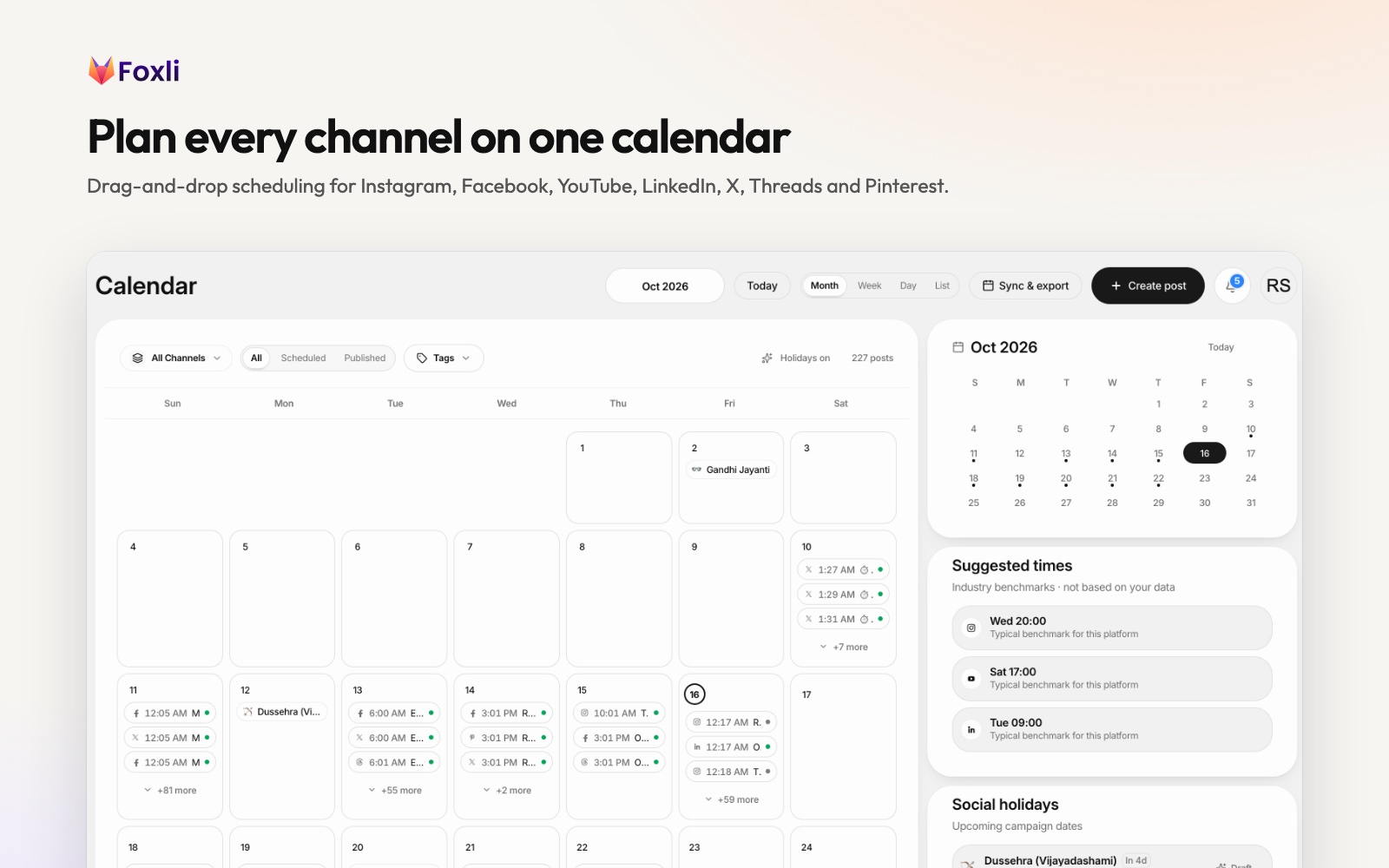
The calendar's Suggested times panel shows typical benchmark slots for each platform. They're industry benchmarks, not your own data, so treat them as a starting point.
From the founder: Foxli's Checks panel flags a YouTube post that is missing a video or a title, because YouTube rejects uploads without them. Catching that before you schedule saves a failed post at 9 AM. Pushpendra Singh Rathor, founder of Foxli
See Foxli's YouTube automation for details. The Free plan includes 3 channels and 10 posts per channel each month.
When to post Shorts for Indian audiences
There's no single best time, but these are common starting points in IST:
| Day | Try |
|---|---|
| Weekdays | 12–2 PM (lunch) and 7–10 PM (evening) |
| Saturday | 10 AM–1 PM and 5–8 PM |
| Sunday | 11 AM–2 PM and 6–9 PM |
After two or three weeks, check YouTube Analytics → Audience → When your viewers are on YouTube and move your slots there.
Common mistakes
- Wrong time zone. A Short scheduled for "9 PM" in the wrong zone goes out at 3:30 PM IST.
- Horizontal videos. Shorts should be vertical (9:16).
- No hook in the first second. Viewers swipe fast; start with the payoff.
- Same video, same caption everywhere. Adjust captions and hashtags per platform.
For other platforms, see how to schedule Pinterest Pins and video Pins and how to schedule LinkedIn posts.